
🎮 Nvidia GeForce Now RTX 5080 Upgrade – Kya Boss, Cloud Gaming Ka Level Hi Kya Badal Diya! 🚀
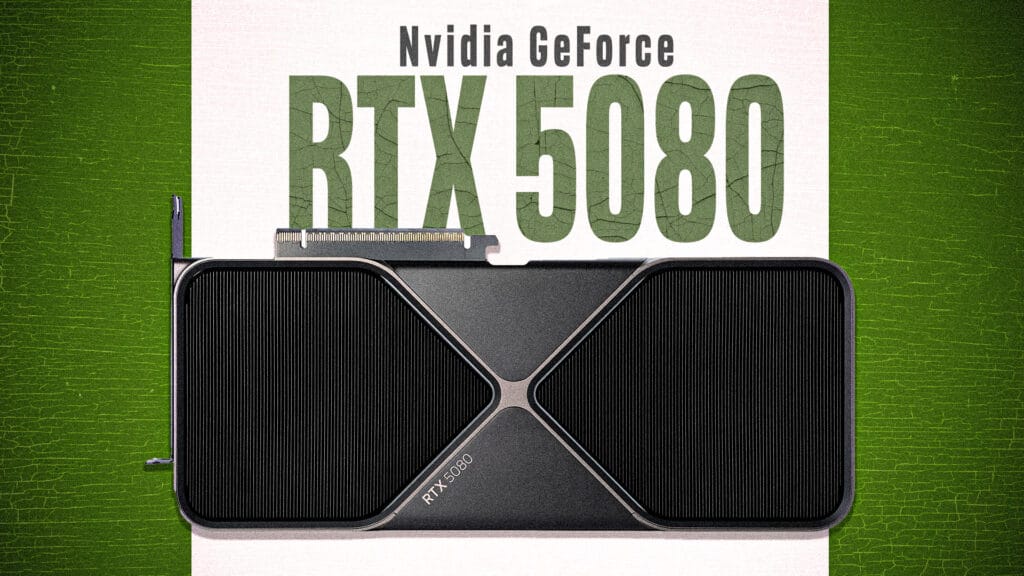
Bhaiyo aur behno, agar tum hardcore gamer ho ya bas casual FPS shooter khelne wale ho, toh suna! Nvidia ne apni GeForce Now cloud gaming service ko itna upgrade kiya hai ki gaming ka future ab haqeeqat jaisa lagne laga hai. RTX 5080 SuperPods ke sath ab tumhara gaming experience ekdum next-level hone wala hai! ⚡Next-Gen Gaming Power with RTX 5080 Nvidia ne apna latest RTX 5080 GPU laaya hai jisme 62 teraflops ki power hai! Matlab? Graphics ekdum ultra-HD crisp, frame rates super smooth 120 FPS tak, aur resolution 5K tak support milega. Aur DLSS 4 technology ka use karke tumhare game ki speed hogi 2.8x zyada — matlab jitna bhi heavy game ho, wo ab easily chalega. 🎥 Cinematic Streaming Ka Jalwa Boss, ye streaming sirf gaming tak hi limited nahi hai. Nvidia ne Cinematic Quality Streaming (CQS) bhi launch kiya hai. Isme HDR10, AI video filters aur 100 Mbps bandwidth milega, jo tumhare game ko ekdum movie-like visual effects de dega. Matlab no more boring low-res streams! Full of realistic colors and a cinematic vibe. 📚 Double Game Library – Install Karke Save Karna Bhoolna Nahi! Ab tum 4,500+ games GeForce Now pe directly cloud par install kar sakte ho with Install-to-Play feature. Storage options bhi dhansu hai — 100GB free, aur agar chahiye toh 1TB tak ka option bhi milta hai at sahi price. Massive library matlab Fortnite, Cyberpunk, GTA 6 sab ek jagah, bina kisi tension ke! 📱 Sab Devices Ko Full Support – Steam Deck, LG TV, Lenovo Ka Dum Chahe tum Steam Deck pe ho ya Lenovo Legion Go pe, ya fir apne bade LG TV pe, Nvidia tumhe 90-120 FPS tak ka smooth gameplay deta hai. LG ke naye 5K monitors bhi ready hain for 120Hz refresh rate streams. Matlab, no lag, no buffering — sirf full-on gaming maza! 💰 Price Bhi Same, Matlab Bajaar Ki Duniya Me Full Deal! Sabse badi baat? Itni zabardast upgrade ke baad bhi Nvidia ne price wahi rakha — Ultimate plan $19.99/month aur Performance plan $9.99/month. Bina extra kharcha ke mil raha hai aaj ke zamane ka sabse powerful cloud gaming experience. 🎉 Final Thoughts – Cloud Gaming Ka Boss Hai Nvidia! Bhaiyon, cloud gaming ka future ab clear ho gaya hai. RTX 5080 ke saath Nvidia ne GeForce Now ko ekdum supercharged bana diya, jisse heavy PC ke bina bhi tum high-end AAA games ka maza le paoge. Bas apna internet pakka karo, aur ready ho jao epic gaming ke liye! Ab gaming sirf ek machine ki baat nahi, pura cloud ka khel hai! ☁️🎮🔥 👉 Tum kya sochte ho? Kya GeForce Now future ka sabse bada game changer banega? Comments mein batao! Is style mein maza bhi aata hai aur trending keywords bhi cover ho jaate hain jaise: RTX 5080, next-level gaming, cinematic streaming, 120 FPS, cloud gaming, AAA games, Steam Deck, aur GTA 6!
YouTube Monetization Rules 2025: क्या बदलाव आए हैं, और AI कंटेंट क्रिएटर्स के लिए नए नियम क्या हैं?
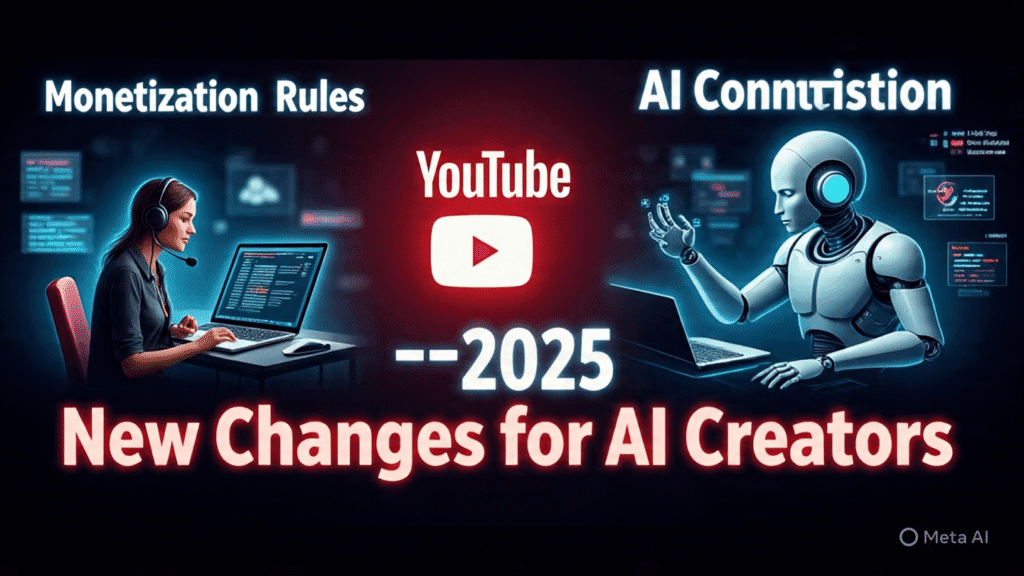
YouTube ने 15 जुलाई 2025 से अपने YouTube Monetization Rules में बड़े बदलाव किए हैं। इन अपडेट्स का सीधा असर उन कंटेंट क्रिएटर्स पर पड़ेगा जो यूट्यूब से पैसे कमाते हैं या कमाने की सोच रहे हैं। सबसे बड़ा फोकस इस बार AI-generated content और पारदर्शिता (transparency) पर है। The evolution of YouTube has been remarkable since its inception. As a platform that allows creators to share their ideas and content globally, YouTube has continuously adapted to the changing landscape of digital media. With the rise of artificial intelligence and its integration into content creation, these new monetization rules are a crucial step to ensure fairness and transparency in the creator ecosystem. These rules not only cater to existing creators but also set a standard for emerging creators who are looking to leverage AI tools in their content processes. Understanding these nuances will be essential for both new and seasoned creators. 1. नए Monetization Rules क्या हैं? 2. कंटेंट क्रिएटर्स के लिए क्या Impact पड़ेगा? 3. SEO Tips — नए नियमों में वीडियो कैसे Rank करें? 4. FAQs Q: क्या AI Videos अब MonetiZation के लिए Allow हैं? A: Allow हैं, लेकिन साफ डिस्क्लोज करना और Copyright Norms फॉलो करना जरूरी है। Q: New Rules कब से लागू हैं? A: 15 जुलाई 2025 से। Q: क्या पुराने Videos पर भी ये नियम लागू होंगे? A: यदि वे अभी भी Monetized हैं, तो Disclosure जरूरी है। निष्कर्ष The impact of these changes on content creators cannot be overstated. They introduce a level of accountability that can potentially reshape the content landscape on YouTube. For instance, a creator who typically produces videos on DIY crafts might find themselves re-evaluating their approach to include a transparent discussion about the use of AI tools for inspiration. अगर आप Content Creator हैं या शुरुआत कर रहे हैं, तो इन नए नियमों को ध्यान से समझकर स्ट्रेटेजी बनाएं। स्पष्ट व पारदर्शी अप्रोच, ओरिजिनल कंटेंट और Responsible AI Usage——बस यही आज के यूट्यूब की जरूरत है। Pro Tip: YouTube Updates और Best Practices के लिए BBC News Hindi जैसे Reliable News Channels को Regularly Follow करें। Trends अपनाएं, लेकिन Authenticity न छोड़ें—यही Long-Term Success का राज़ है! **#YouTubeMonetization #AIVideos #YouTubeRules #ContentCreators #TransparencyInContent #MonetizationStrategies As YouTube emphasizes transparency, creators should be prepared to adopt a more open dialogue with their audiences. This can involve sharing the creative process behind videos, including how AI tools are utilized, which can foster trust and engagement with viewers. Originality remains a cornerstone of effective content creation. For example, a cooking channel could stand out by blending traditional recipes with AI-generated suggestions for modern twists, thus providing unique value to their viewers. This not only enhances viewer engagement but also adheres to the new monetization guidelines. Additionally, creators should consider the broader implications of these rules on their content strategy. For example, how will they approach video titles and descriptions to ensure they accurately reflect the content creation process? This could lead to more thoughtful and engaging content that reflects the creator’s unique voice while adhering to YouTube’s guidelines. The importance of community interaction cannot be overlooked. Creators can ask for viewer feedback in the comments section or even conduct polls to decide future content directions, thereby enhancing viewer involvement and satisfaction. Furthermore, staying up-to-date with YouTube’s evolving best practices is crucial for long-term success. Creators should actively seek out educational resources, webinars, and workshops that focus on YouTube monetization and its implications for AI-generated content. Building a network with other creators can also provide valuable insights and support. In conclusion, the landscape of YouTube monetization is changing, and staying informed will be vital for success. As the platform continues to adapt to new technologies and audience expectations, creators must also evolve. By embracing these new rules and focusing on originality, transparency, and community engagement, content creators can thrive in this new era of YouTube monetization.
🎨 Graphic Designer vs Video Editor Salary in India (2025) – Who Earns More?
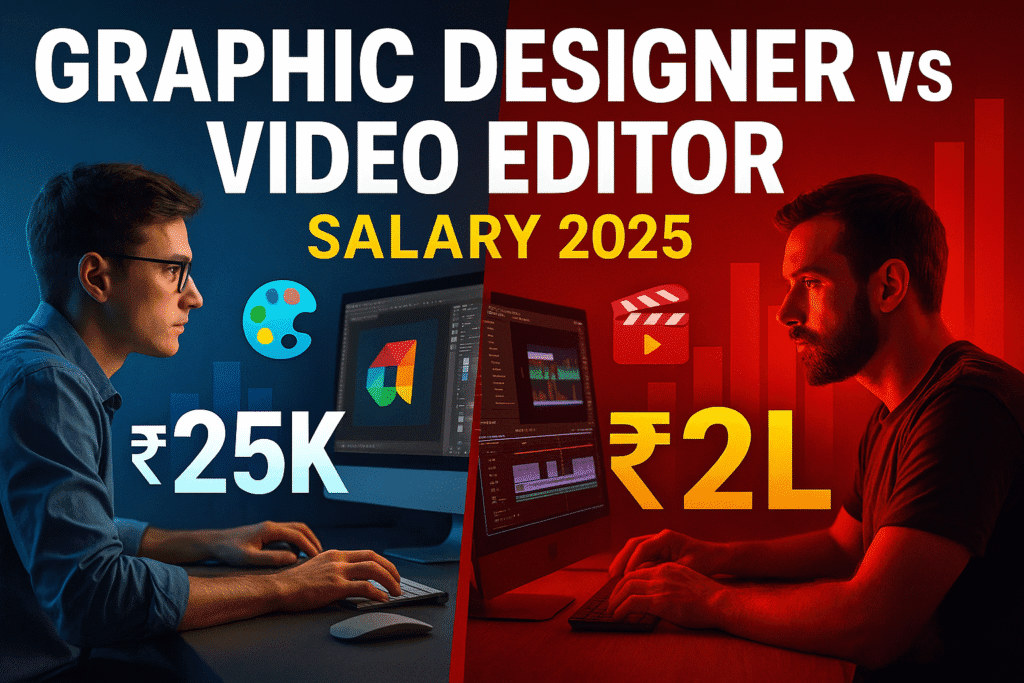
Graphic Designer vs Video Editor Salary in India
Editing PC Build Guide 2025: प्रोफेशनल वीडियो एडिटिंग के लिए पावरफुल कन्फिगरेशन
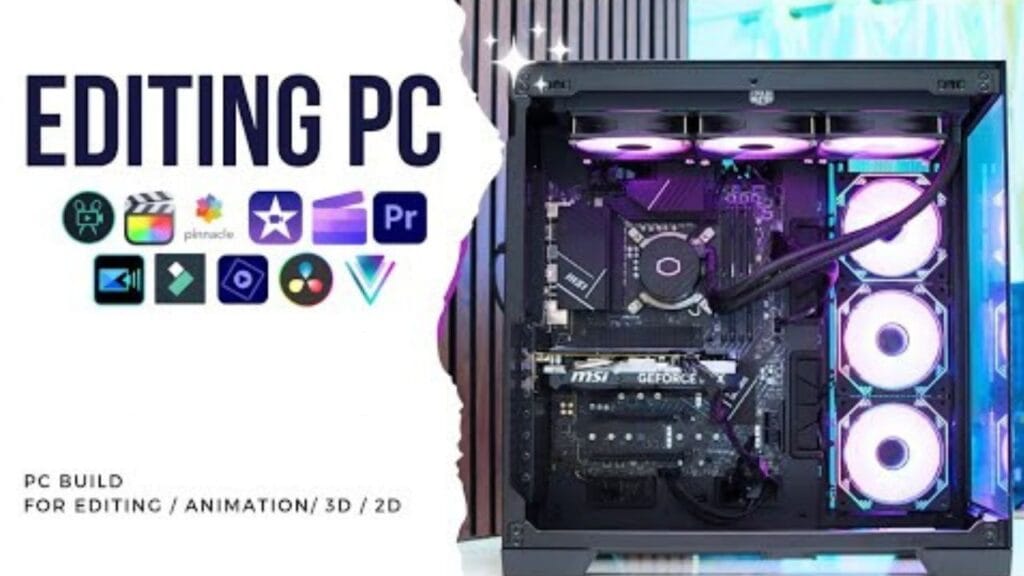
If you are a video editor looking to build a performance-based PC, this guide on the Best Video Editing PC Build 2025 is for you. There is a significant difference between gaming PCs and editing PCs. While gaming requires a strong graphics card, editing places greater importance on the CPU, RAM, SSD, and an upgradeable motherboard. इस आर्टिकल में हम आपको दिखाएंगे एक ऐसे एडिटिंग पीसी का बिल्ड, जो न सिर्फ 4K वीडियो एडिटिंग को सपोर्ट करता है, बल्कि फ्यूचर में अपग्रेडेशन के लिए भी पूरी तरह से तैयार है। This article will showcase a PC build for editing that not only supports 4K video editing but is also fully prepared for future upgrades, making it the Best Video Editing PC Build 2025. 🔧 मुख्य कंपोनेंट्स और उनका चयन 🔹 प्रोसेसर (CPU): Intel i7 14700 🔹 मदरबोर्ड: MSI Z790-P WiFi Series नोट: एमएसआई की सर्विस मुंबई में थोड़ी कमजोर है, इसलिए सर्विस नेटवर्क को भी खरीदारी से पहले चेक करें। 💾 स्टोरेज: स्पीड और भरोसे का बैलेंस 🔸 Primary SSD: Samsung 990 Pro NVMe Gen4 🔸 Secondary HDD: 4TB Seagate/WD 💡 RAM: Multichannel & High-Frequency ❄️ कूलिंग सिस्टम: Cooler Master 360mm Liquid Cooler 🎮 ग्राफिक्स कार्ड: RTX 4060 8GB ⚡ पावर सप्लाई: High Quality is Non-Negotiable 🖥️ फाइनल बिल्ड के हाईलाइट्स कंपोनेंट स्पेसिफिकेशन प्रोसेसर Intel Core i7 14700 मदरबोर्ड MSI Z790-P WiFi RAM 32GB DDR5 (2x16GB @6000MHz) SSD 1TB Samsung 990 Pro NVMe HDD 4TB Seagate/WD ग्राफिक्स कार्ड NVIDIA RTX 4060 8GB पावर सप्लाई 1050W Thermaltake, 600W GPU कनेक्टर कूलर Cooler Master 360mm Liquid Cooler 🎯 परफॉर्मेंस और अपग्रेड स्कोप 🛠️ असेंबली टिप्स 🔚 निष्कर्ष अगर आप एक प्रोफेशनल एडिटर हैं जो स्मूद 4K एडिटिंग, मल्टी-डिस्प्ले सपोर्ट और फास्ट रेंडरिंग चाहते हैं — तो ये पीसी बिल्ड आपके लिए एक परफेक्ट ऑप्शन हो सकता है। सबसे अच्छी बात ये है कि फ्यूचर अपग्रेड के लिए हर कंपोनेंट में स्कोप रखा गया है। 📢 आप क्या सोचते हैं? Introducing the 2025 Editing PC Build Guide: Powerful Configuration for Professional Video Editing. Considering the high-quality components like the 4TB Seagate/WD Secondary HDD and the Multichannel & High-Frequency RAM, along with the RTX 4060 8GB graphics card, this build is tailored for smooth 4K editing, multi-display support, and fast rendering. Don’t overlook the essential Cooling System with the Cooler Master 360mm Liquid Cooler and the non-negotiable High-Quality Power Supply. If you’re an editor seeking performance and upgrade potential, this PC build could be the perfect option for you. Share your thoughts and preferences in the comments below.
🎬 How to Animate News Articles in After Effects – Full Guide in Hindi (2025)
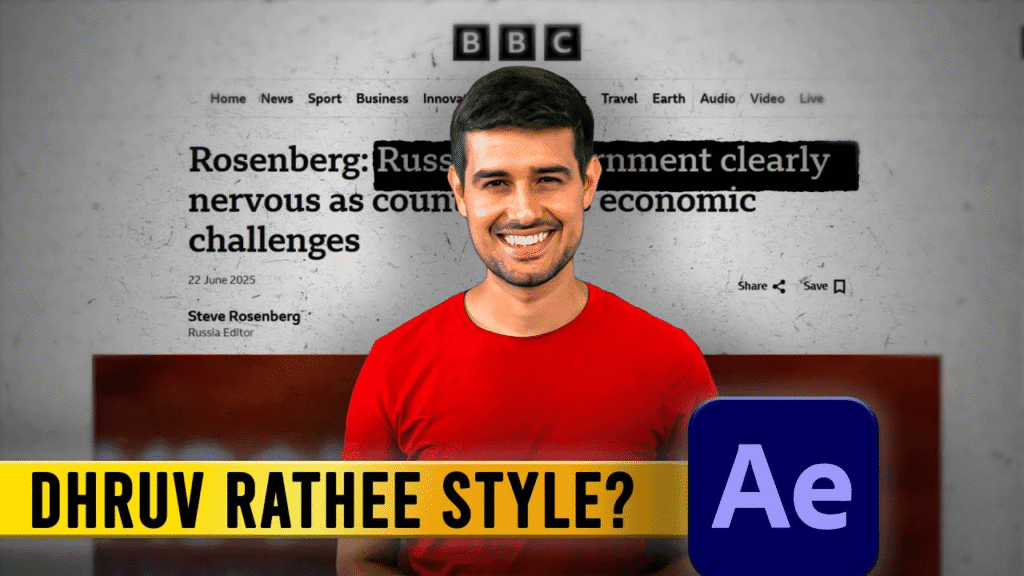
👋 Intro: नमस्कार दोस्तों! मैं हूं आशीष, और आज हम सीखेंगे कि After Effects में एक न्यूज़ आर्टिकल को कैसे प्रोफेशनली एनिमेट किया जाता है। अगर आप YouTube या Instagram के लिए वीडियो बनाते हैं और आपके वीडियो में जानकारी वाले टेक्स्ट या आर्टिकल आते हैं — तो ये ट्यूटोरियल आपके बहुत काम आने वाला है। 🛠️ क्या चाहिए होगा? 📚 Step-by-Step Tutorial (Hindi) 📸 Step 1: आर्टिकल का स्क्रीनशॉट लें Microsoft Edge ब्राउज़र से किसी भी न्यूज़ वेबसाइट का फुल पेज screenshot लें। Tip: Web Capture > Full Page > Save as PNG. 🎞️ Step 2: After Effects में Composition बनाएं 📂 Step 3: Screenshot को Import करें 🎨 Step 4: Texture Overlay लगाएं इससे आपके article को newspaper जैसा real look मिलेगा। 🎯 Step 5: Animation Setup ✏️ Step 6: Highlight Sections इससे आप किसी खास लाइन या पॉइंट को स्क्रीन पर उभार सकते हैं 🧪 Step 7: Final Touch 🎥 Watch Full Tutorial Here 👉 YouTube Video LinkSubscribe करें चैनल “Ashish Editing Tips” पर और Editing में Master बनें! 🔗 Internal Links – More From IndianFunMedia 📦 Download Project Files हम अगले वीडियो में इस प्रोजेक्ट की source files, overlays और textures provide करेंगे।Website और YouTube चैनल पर जुड़े रहें ताकि कुछ मिस न हो! 📣 Conclusion अगर आप चाहते हैं कि आपके वीडियो में डिजिटल न्यूज़पेपर या डॉक्यूमेंट स्टाइल का feel आए — तो ये तरीका आपके लिए परफेक्ट है। इस ट्यूटोरियल को फॉलो करके आप एक सिंपल आर्टिकल को प्रोफेशनल Motion Graphics में बदल सकते हैं — वो भी बिना किसी भारी भरकम plugin के।
🎬 Cinematic Paper Animation Tutorial in After Effects (Free Project File + Assets) | Indian Fun Media
By Indian Fun Media Team | Updated June 2025 Learn how to create a cinematic research paper animation using Adobe After Effects. Perfect for short films, educational videos, documentaries, and cinematic YouTube edits. Includes FREE project file + high-quality assets for download! 📺 Watch the Tutorial 📦 Download Project Files & Assets ✅ Free After Effects Project File (.aep)✅ High-resolution Background Texture✅ Editable Research Paper PNG✅ Typography Template✅ Page Curl Preset & Light FX 👉 Download Now (Google Drive)(No password, for personal use only) 🛠️ Tools Used 🧠 What You’ll Learn 💡 Bonus Tips 📣 About Indian Fun Media Indian Fun Media is your go-to hub for video editing tutorials, free AE project files, and professional-level assets. We simplify high-level edits so creators like you can build better content faster. 📌 Follow us on YouTube, Instagram @IndianFunMedia, and stay updated with our latest downloads!
Master the Johnny Harris Style: Newspaper Animation in After Effects
If you’re a fan of Johnny Harris or Vox’s documentary videos, you’ve probably noticed the sharp newspaper-style animations, kinetic headlines, and seamless transitions. These elements are not just eye-catching; they serve a purpose in storytelling and audience engagement. Good news? You can replicate that exact aesthetic inside Adobe After Effects — no fancy plugins needed. In this tutorial, you will learn to Master the Johnny Harris Style, an approach that will elevate your video production skills and help you create compelling narratives that captivate your audience. In this video tutorial, you’ll learn: But before we dive into the tutorial, let’s discuss why this style is so effective. The combination of visual elements not only grabs attention but also enhances the storytelling by providing context and emotional cues to the viewers. By mastering these techniques, you will be able to create videos that resonate with your audience on a deeper level. 🔹 Examples of successful use of this style in documentaries and short films 🎯 Pro Tip: Keep your camera movements minimal but purposeful. Combine push-ins with sound cues and voiceover pauses to mimic the classic Johnny Harris rhythm. Whether you’re crafting a political explainer, a historical reel, or a geo-narrative story — this style adds instant credibility and cinematic polish. 🔹 How to adapt this style for different genres — be it travel, history, or social issues 🎯 Pro Tip: Use a consistent color palette throughout your project to maintain visual coherence. Consider how colors can evoke particular emotions and enhance the atmosphere of your story. ✅ Tools Used: As we proceed, remember that every element you include — from sound design to graphic overlays — plays a critical role in your video’s overall impact. Practice these techniques regularly, and soon you will find your unique voice within this style. 📌 Final Thought: Mastering this style doesn’t just make your video look cool — it helps tell stories visually and hold attention in a scroll-happy world. The techniques involved in this style teach you not only about aesthetics but also about pacing, rhythm, and the importance of visual storytelling. By embracing the Johnny Harris approach, you can produce videos that not only inform but also inspire and engage your audience effectively. Mastering this style doesn’t just make your video look cool — it helps tell stories visually and hold attention in a scroll-happy world. If you’re a fan of Johnny Harris or Vox’s documentary videos, you’ve likely admired the distinctive newspaper-style animations, dynamic headlines, and smooth transitions. Fortunately, you can achieve this precise look in Adobe After Effects without the need for elaborate plugins. In this instructional video, you will discover how to: 🎯 Pro Tip: Maintain deliberate and subtle camera movements. Pair zoom-ins with audio cues and pauses in narration to capture the signature Johnny Harris tempo. Whether you’re developing a political analysis, a historical compilation, or a geographic narrative, incorporating this style instantly enhances credibility and provides a cinematic touch. ## ✅ Tools Utilized: ## 📌 Parting Note: Mastering this technique not only enhances the visual appeal of your videos but also aids in conveying narratives effectively and retaining viewers’ attention in an era of constant scrolling. The journey to mastering this art is ongoing. Don’t hesitate to experiment with different tools, styles, and techniques as you develop your skills. The more you practice, the more intuitive these techniques will become, allowing you to tell more compelling stories.
Top Video Editing Tricks to Grow Your YouTube Channel (2025 Guide)
Top Video Editing Tricks to Grow Your YouTube Channel (2025 Guide) Growing a YouTube channel is not just about recording videos — it’s about editing them smartly. Great editing keeps viewers engaged, increases watch time, and makes your content stand out. If you’re a beginner or even an intermediate creator, these YouTube video editing tips will help you grow faster in 2025. 🎬 1. Create an Engaging Intro (Within 5 Seconds) SEO keyword: how to create YouTube intro 🛠 Tools: CapCut, Premiere Pro, Canva (for logo animation) ✂️ 2. Use Jump Cuts to Keep It Fast SEO keyword: jump cuts editing YouTube 🛠 Tools: VN Editor, iMovie, Adobe Premiere Rush 🔤 3. Add Subtitles & Text Highlights SEO keyword: how to add subtitles to YouTube videos 🛠 Tools: YouTube Studio, Kapwing, Veed.io 🎵 4. Add Background Music to Set the Mood SEO keyword: best background music for YouTube videos 🛠 Free Music Sources: YouTube Audio Library, Bensound, Mixkit 🔁 5. Use Simple Transitions & Motion Effects SEO keyword: YouTube video transitions 🛠 Tools: Final Cut Pro, Filmora, CapCut 📱 6. Best Mobile Editing Apps for YouTube SEO keyword: mobile video editing apps for YouTube 📈 7. Edit With SEO in Mind SEO keyword: YouTube video SEO tips 🛠 Tools: VidIQ, TubeBuddy, Canva (for thumbnails) 🧠 Bonus Tip: Add Strong CTAs ✅ Conclusion Smart editing is your secret weapon for YouTube success. Whether you’re editing on mobile or desktop, these techniques will help you retain viewers, increase engagement, and grow your channel organically. Combine consistent content with sharp editing — and you’re set to grow in 2025.rs—all बढ़ेंगे। Consistency और creativity के साथ editing में mastery आपको YouTube पर success दिला सकती है।
70K Video Editing and Gaming PC Build – Best Intel Setup for 4K Editing & Smooth Gameplay (2025)
🎬 Introduction Are you a content creator or gamer looking for a powerful yet budget-friendly PC in 2025? You’re in the right place. With just ₹70,000, you can build an Intel-powered editing and gaming machine that handles 4K video editing and 1080p gaming without a hitch. In this guide, we’ll show you how to build the best 70K video editing and gaming PC in India, using the latest Intel processor and GPU combination. Whether you’re editing YouTube videos, working with Adobe Premiere Pro, or playing titles like GTA V and Valorant — this rig delivers performance without draining your wallet. 🧠 Why Choose Intel for Editing and Gaming in 2025? Intel’s 12th and 13th generation CPUs introduced hybrid architecture with performance (P) and efficiency (E) cores. This design gives you multitasking power for editing software and smooth responsiveness for gaming. Here’s why Intel shines in this budget: 🧩 Key Features of This ₹70,000 Intel PC Build 🛠️ Full PC Build List (2025 – Intel DDR5 Setup) Here’s your PC build list in a clean table format with an additional column for Amazon purchase links (you can click to buy or check the latest prices): Component Product Name Reason Amazon Link Processor Intel Core i5-13400F 10 cores (6P+4E), great for multitasking Buy on Amazon CPU Cooler DeepCool AK400 Keeps the CPU cool even during long renders Buy on Amazon Motherboard Gigabyte B760M DS3H AX DDR5 WiFi DDR5 support, future-proof, Wi-Fi + Bluetooth Buy on Amazon RAM G.Skill Ripjaws S5 32GB (2x16GB) DDR5 6000MHz Enough for editing, fast, and dual-channel Buy on Amazon SSD Crucial P3 1TB NVMe Fast read/write, space for OS, software & media Buy on Amazon Graphics Card NVIDIA GeForce RTX 3050 8GB GPU acceleration in editing & smooth 1080p gaming Buy on Amazon Power Supply Ant Esports FP650B 80 Plus Bronze Reliable power delivery, 80+ certified Buy on Amazon Cabinet MSI MAG Forge 100R ARGB Good airflow, RGB lighting, spacious layout Buy on Amazon 💡 Total Price: Approx. ₹70,000 (as of April 2025) ⚙️ Performance Benchmarks (Estimated) Task Expected Performance 4K Video Editing (Premiere Pro) Smooth timeline playback with proxies, fast rendering using GPU DaVinci Resolve Handles 1080p + light 4K workflows well Adobe After Effects Fast RAM preview, smooth animations Gaming – GTA V 90+ FPS on High @1080p Gaming – Valorant, CS2 144+ FPS @1080p 🔼 Upgrade Suggestions To future-proof your build or handle more demanding workloads: ❓ FAQs Q: Can this ₹70,000 PC edit 4K videos?✅ Yes — especially with proxies or optimized media in DaVinci/Premiere. Q: Is 16GB RAM enough for video editing?🔄 It’s workable, but 32GB is much better. That’s why this build uses 32GB. Q: Is this PC good for both editing and gaming?✅ Absolutely. RTX 3050 handles most modern games at 1080p high settings. Q: Intel or Ryzen — which is better?Intel i5-13400F wins here due to better Adobe support (Quick Sync) and multi-core efficiency. 🏁 Final Thoughts If you’re looking to build a 70K video editing and gaming PC in India, this Intel setup gives you pro-level power at a budget price. It can crush 1080p and 4K editing, multitask smoothly, and still deliver great frame rates in games. This build is ideal for:
The Best PCs for Video Editing in 2025: Power, Speed, and Smooth Renders
Introduction In the world of video editing, having the right equipment can make all the difference, especially when working with high-resolution content like 4K. Whether you’re a beginner, a hobbyist, or a professional, investing in the best PCs for video editing is crucial to ensuring smooth performance and minimal frustration. With the rise of 4K content creation, it’s no longer enough to simply have any computer – you need a powerful machine that can handle the demanding workload of rendering, editing, and previewing high-quality video. Choosing among the best PCs for video editing options available will help you get the performance you need. When considering the best PCs for video editing, it’s important to evaluate your specific needs and the type of projects you will be working on. Whether you’re editing videos for YouTube, creating short films, or working on professional projects, the right PC can enhance your editing experience significantly. The best PCs for video editing ensure you have the tools needed to bring your creative visions to life. This guide will walk you through everything you need to know about building or buying the best PCs for video editing that meets your specific needs. From choosing the right CPU and GPU to optimizing storage and RAM for seamless 4K editing, we’ll cover all the essential components that ensure a smooth workflow. Whether you’re working with film, YouTube videos, or creative projects, your PC should be able to keep up with the heavy lifting required for 4K editing without compromise. Let’s dive in and explore the best PCs for video editing options available in 2025. 1. What Makes a Good PC for Video Editing? Identifying the best PCs for video editing can significantly impact your workflow and productivity. A well-chosen PC not only meets your current demands but also prepares you for upcoming trends in video editing technology. When searching for the perfect PC for video editing, you need to focus on several key components to ensure your machine will handle the job. Here are the main specs to consider: Future Upgradability: Choose from the best PCs for video editing that allow for future upgrades, ensuring longevity in your investment. Video Editing Software Compatibility: Ensure that the best PCs for video editing are compatible with the video editing software you plan to use, as this can influence overall performance. 2. Why 4K Video Editing Needs a Powerful PC 4K video editing is incredibly demanding on your computer. Working with high-resolution footage requires immense processing power, as the files are much larger and more complex than standard HD videos. Without a powerful PC, you’ll experience slow rendering times, lagging playback, and possible crashes during intensive tasks. A 4K video editing PC build needs to handle large video files smoothly and provide the performance you need to make edits, render effects, and preview the footage in real time. A slower machine can hinder your creativity and productivity, so investing in a high-end machine is essential to maintaining a professional workflow. Ultimately, finding the best PCs for video editing tailored to your needs will lead to a more efficient and enjoyable editing process. 3. Best Components for a 4K Video Editing PC Build To ensure your custom-built PC can handle 4K video editing, the right components are crucial. Here are the best choices for a powerful, future-proof system: Ultimately, selecting one of the best PCs for video editing will empower you to meet tight deadlines and produce high-quality content efficiently. The right hardware can make complex editing tasks easier and faster. 4. Good PC Options for Video Editing (Pre-Built and Custom) If you don’t want to build your own PC, here are some top pre-built options that are excellent for 4K video editing: For a custom 4K video editing PC build, here are three options based on your budget: 5. Additional Tips to Boost 4K Video Editing Performance Even the best PC can be optimized for better performance. Here are some tips: 6. Conclusion Choosing a good PC for video editing, especially when dealing with 4K footage, is an investment in your future work. Whether you go for a powerful pre-built machine or a custom 4K video editing PC build, the right components will ensure you can handle even the most demanding video projects with ease. Always consider future-proofing your build by selecting components that can grow with your needs, including the best PCs for video editing that meet industry standards. By focusing on CPU, GPU, RAM, and storage, you’ll be well on your way to achieving a smooth, efficient video editing experience in 2025 and beyond. Don’t settle for less – equip yourself with the power to edit at the highest level. Keep in mind that investing in the best PCs for video editing is not just about performance; it’s also about ensuring that your equipment can adapt and grow with your editing needs over time. In conclusion, investing in the best PCs for video editing not only enhances your performance but also opens doors to new creative possibilities.
GIGABYTE RTX 3060 WINDFORCE OC 12GB: Video Editing के लिए Best Graphics Card? [Full Review]
🖥️ Introduction अगर आप एक प्रोफेशनल Video Editor हैं या High-Quality Content बनाते हैं, तो एक Powerful Graphics Card होना बेहद जरूरी है। आज हम बात करेंगे GIGABYTE NVIDIA GeForce RTX 3060 WINDFORCE OC 12GB GDDR6 के बारे में, जो Video Editing के लिए एक दमदार चॉइस बन चुका है। लेकिन क्या ये आपके Editing Workflow के लिए सही रहेगा? चलिए जानते हैं पूरी Detail में। ⚡ Product Overview: GIGABYTE RTX 3060 WINDFORCE OC 🎥 Video Editing में इसकी ताकत 1. 12GB GDDR6 Memory — Smooth Multi-Layer Editing Adobe Premiere Pro, DaVinci Resolve या After Effects जैसे Software में जब आप 4K फुटेज के साथ Multiple Layers पर काम करते हो, तब ज्यादा VRAM की जरूरत होती है।RTX 3060 का 12GB GDDR6 Memory आपको Heavy Project में भी Smooth Playback देता है, बिना Lag के। 2. CUDA Cores & AI Rendering — तेज Export Time RTX 3060 में 3584 CUDA Cores हैं, जो आपके Export और Render Time को काफी कम कर देते हैं।DaVinci Resolve और Adobe Premiere दोनों अब CUDA Based Rendering को सपोर्ट करते हैं, जिससे वीडियो फास्ट रेंडर होते हैं। 3. Ray Tracing & AI Features — Future Proof Tech अगर आप Motion Graphics, VFX या 3D Animation भी करते हैं, तो RTX 3060 का Ray Tracing और AI Denoising जैसे Features फ्यूचर-प्रूफ काम देंगे।आपका Workflow और भी Realistic और Pro Quality का बनेगा। 4. WINDFORCE Cooling — Long Editing Sessions में No Overheating GIGABYTE का WINDFORCE Cooling System Dual Fan Setup के साथ आता है, जो लंबे समय तक Editing करने के बाद भी GPU को Cool रखता है।मतलब No Thermal Throttling, No Frame Drops! 💰 Price vs Performance: सही Value मिलती है? जब हम Performance और Price की तुलना करते हैं, RTX 3060 WINDFORCE एक Perfect Mid-Range Option बनता है।4K Video Editing, Color Grading, Heavy Effects Work — सब कुछ बिना बड़ी दिक्कत के हो जाता है। 🆚 Competition Comparison: GPU Model VRAM Performance (Video Editing) Price Range (INR) RTX 3060 (GIGABYTE) 12GB Best for 4K Editing ₹30K-₹35K RTX 4060 8GB Newer, but Less VRAM ₹32K-₹38K RX 6750 XT (AMD) 12GB Good for Gaming, Decent for Editing ₹35K-₹40K ✅ RTX 3060 12GB आज भी Editing के लिए एक Top Value Offer करता है! 🛠️ System Requirements (For Smooth Editing): 🔥 Final Verdict: Kya GIGABYTE RTX 3060 लेना चाहिए? अगर आपका Main Focus 4K Editing, VFX, Animation, या High-Quality Video Projects पर है, तो GIGABYTE RTX 3060 WINDFORCE OC 12GB GDDR6 एक शानदार Investment है। ✅ जबरदस्त Performance✅ Cool और Silent Operation✅ Budget Friendly (4K Video Editing के हिसाब से) Editor’s Rating: ⭐⭐⭐⭐⭐ (5/5) Video Editing Workflow “अगर आप अपने Video Editing Workflow को Next Level पर ले जाना चाहते हैं, तो GIGABYTE RTX 3060 WINDFORCE एक बेहतरीन चॉइस साबित हो सकती है! आज ही अपना Upgrade करें!” 🧾 GIGABYTE RTX 3060 WINDFORCE OC 12GB – Price & Features Comparison Table (India April 2025) Platform Price (INR) Memory Core Clock CUDA Cores Warranty Delivery/Policy Buy Link Flipkart ₹28,026 12GB GDDR6 1792 MHz 3584 3 Years Easy Return (Flipkart) 🔗 Link PrimeABGB ₹26,721 12GB GDDR6 1792 MHz 3584 3 Years 2–4 Days Delivery 🔗 Link Design Info ₹27,500 12GB GDDR6 1792 MHz 3584 3 Years GST Invoice + Fast Delivery 🔗 Link PC Studio ₹25,960 12GB GDDR6 1792 MHz 3584 3 Years 3-Day Replacement Policy 🔗 Link BuildMyPC ₹20,384 12GB GDDR6 1792 MHz 3584 3 Years Cheapest (Check Support) 🔗 Link ✅ Recommendation: Use Case Suggestion Best Deal (Low Price) ✅ BuildMyPC (₹20,384) Trusted & Fast Delivery ✅ Flipkart / PrimeABGB Pro/Agency Buyers (GST, Bulk, Warranty) ✅ Design Info / PC Studio Bonus Tip:अगर आप अपनी एजेंसी के लिए Multiple GPUs खरीद रहे हो तो Design Info या PC Studio से बात करके Bulk Discount भी निकल सकता है।
Free AI बैकग्राउंड म्यूजिक जनरेटर: बेस्ट वेबसाइट्स 2025 🎶
क्या आप YouTube वीडियो, पॉडकास्ट, या प्रोजेक्ट्स के लिए रॉयल्टी-फ्री बैकग्राउंड म्यूजिक ढूंढ रहे हैं? अब AI टूल्स की मदद से कस्टम म्यूजिक बनाना आसान हो गया है! चाहे आपको लो-फाई, सिनेमैटिक, या डांस ट्रैक चाहिए, ये मुफ्त AI वेबसाइट्स आपकी मदद करेंगी। 1. Mubert – AI से ऑटो-जनरेटेड म्यूजिक 🎧 🔗 https://mubert.com/ ✅ फीचर्स: 💡 क्यों यूज़ करें?अगर आपको क्विक और यूनिक म्यूजिक चाहिए, तो Mubert बेस्ट है। बस “Generate Track” पर क्लिक करें और AI आपके लिए म्यूजिक बना देगा! 2. Soundraw – कस्टमाइज़ करो, डाउनलोड करो 🎹 🔗 https://soundraw.io/ ✅ फीचर्स: 💡 क्यों यूज़ करें?अगर आपको एडिट करने की आज़ादी चाहिए, तो Soundraw से अपने हिसाब से म्यूजिक क्रिएट करें। 3. AIVA – फिल्मों जैसी ऑर्केस्ट्रल म्यूजिक 🎻 🔗 https://www.aiva.ai/ ✅ फीचर्स: 💡 क्यों यूज़ करें?अगर आप एपिक, इमोशनल, या फिल्मी साउंड चाहते हैं, तो AIVA से बेहतर कोई ऑप्शन नहीं! 4. Boomy – 3 क्लिक में हिट म्यूजिक 🚀 🔗 https://boomy.com/ ✅ फीचर्स: 💡 क्यों यूज़ करें?अगर आपको नो म्यूजिक एक्सपीरियंस है, फिर भी प्रो-लेवल ट्रैक्स चाहिए, तो Boomy आजमाएं! 5. Epidemic Sound (Free ट्रायल) – प्रो-लेवल क्वालिट 🔗 https://www.epidemicsound.com/ ✅ फीचर्स: 💡 क्यों यूज़ करें?अगर आप नो कॉपीराइट इश्यू चाहते हैं और प्रीमियम साउंड चाहिए, तो Epidemic Sound ट्राय करें। 6. Ai Freesound – कम्युनिटी-आधारित फ्री साउंड्स 🆓 🔗 https://freesound.org/ ✅ फीचर्स: 💡 क्यों यूज़ करें?अगर आपको रॉयल्टी-फ्री साउंड इफेक्ट्स और लूप्स चाहिए, तो Freesound बेस्ट है। निष्कर्ष: कौन सा टूल यूज़ करें? जरूरत बेस्ट AI टूल ऑटो-जनरेटेड म्यूजिक Mubert कस्टमाइज़ेशन Soundraw सिनेमैटिक/ऑर्केस्ट्रल AIVA क्विक हिट ट्रैक्स Boomy प्रो-लेवल साउंड्स (फ्री ट्रायल) Epidemic Sound फ्री साउंड इफेक्ट्स Freesound अगर आप यूट्यूबर, पॉडकास्टर, या कंटेंट क्रिएटर हैं, तो इनमें से किसी एक AI टूल को ट्राय करें और अपने प्रोजेक्ट्स को नया लेवल दें! 🎵🔥 कमेंट में बताएं – आपको कौन सा टूल सबसे अच्छा लगा? 😊
Freelancing क्या है? घर बैठे पैसे कमाने का आसान तरीका 2025 Guide
अगर आप घर बैठे पैसे कमाना चाहते हैं, तो Freelancing आपके लिए एक बेहतरीन ऑप्शन हो सकता है। आज के डिजिटल युग में लाखों लोग Freelancing करके अच्छी इनकम कर रहे हैं। चाहे आप स्टूडेंट, हाउसवाइफ, या फुल-टाइम जॉब करने वाले हों, Freelancing से आप एक्स्ट्रा इनकम या फुल-टाइम करियर बना सकते हैं। इस ब्लॉग में हम जानेंगे:✅ Freelancing क्या है?✅ Freelancing से पैसे कैसे कमाएँ?✅ टॉप Freelancing Skills जिनकी मार्केट में डिमांड है✅ Freelancing शुरू करने के लिए बेस्ट प्लेटफॉर्म✅ Freelancing में सफल होने के टिप्स 1. Freelancing क्या है? (What is Freelancing in Hindi?) Freelancing का मतलब है स्वतंत्र रूप से काम करना। Freelancer किसी एक कंपनी के लिए काम करने की बजाय अलग-अलग क्लाइंट्स के प्रोजेक्ट्स पर काम करता है। आप अपने स्किल्स के हिसाब से काम चुन सकते हैं और घर बैठे पैसे कमा सकते हैं। Freelancing के फायदे: 2. Freelancing से पैसे कैसे कमाएँ? (How to Earn Money from Freelancing?) Freelancing शुरू करने के लिए आपको 3 चीजों की जरूरत होती है: 1. स्किल डेवलप करें (Learn a High-Demand Skill) Freelancing में सफल होने के लिए आपके पास कोई डिमांडिंग स्किल होनी चाहिए। जैसे: 2. Freelancing प्रोफाइल बनाएँ (Create a Strong Profile) 3. प्रोजेक्ट्स ढूँढें और बोली लगाएँ (Bid on Projects) 3. Freelancing के लिए बेस्ट प्लेटफॉर्म (Top Freelancing Websites in Hindi) प्लेटफॉर्म विशेषता लिंक Fiverr गिग बेस्ड प्रोजेक्ट्स www.fiverr.com Upwork हाई-पेइंग जॉब्स www.upwork.com Freelancer बिडिंग सिस्टम www.freelancer.com PeoplePerHour यूरोपियन क्लाइंट्स www.peopleperhour.com Toptal टॉप लेवल फ्रीलांसर्स के लिए www.toptal.com 4. Freelancing में सफल होने के 5 गोल्डन टिप्स निष्कर्ष: Freelancing से करोड़पति बनना संभव है! Freelancing आज के समय में सबसे तेजी से बढ़ता करियर ऑप्शन है। अगर आप मेहनत और लगन से काम करेंगे, तो घर बैठे लाखों रुपये कमा सकते हैं। शुरुआत में थोड़ी मुश्किलें आएँगी, लेकिन कंसिस्टेंसी और पेशन के साथ आप जरूर सफल होंगे! आज ही Freelancing शुरू करें और Financial Freedom पाएँ! अक्सर पूछे जाने वाले सवाल (FAQs) Q1. क्या बिना स्किल के Freelancing शुरू कर सकते हैं?👉 नहीं, पहले कोई स्किल सीखें (जैसे Graphic Design, Writing, SEO)। Q2. Freelancing से महीने में कितना कमा सकते हैं?👉 शुरुआत में 10-20K, एक्सपीरियंस के बाद 50K-1L+ प्रति महीना। Q3. क्या Freelancing के लिए डिग्री जरूरी है?👉 नहीं! स्किल्स और एक्सपीरियंस मायने रखता है। अगर आपको यह ब्लॉग पसंद आया, तो शेयर जरूर करें! 🚀 #Freelancing #WorkFromHome #OnlineEarning #FreelancingInHindi #GharBaithePaisaKamaye
The 3 Best AI Image Generators to Unleash Your Creativity
3 Best AI Image Generators Artificial Intelligence has revolutionized countless industries, and one of the most exciting advancements is in the field of image generation. Whether you’re an artist seeking inspiration, a marketer looking for unique visuals, or simply someone who loves experimenting with creative tools, AI-powered image generators have something for everyone. In this article, we’ll explore the three best AI image generator websites that are making waves in 2023. 1. MidJourney Caption: The sleek and intuitive interface of MidJourney makes it easy to generate stunning visuals. Why It Stands Out: MidJourney is a favorite among creatives for its ability to produce highly detailed, artistic, and surreal images. Using a simple text-based prompt system, users can describe their vision, and MidJourney will generate breathtaking visuals in minutes. Its strength lies in its versatility—whether you’re looking for photorealistic portraits, dreamlike landscapes, or abstract art, MidJourney delivers consistent quality. Key Features: Best For: Artists, designers, and anyone who wants to experiment with imaginative and high-quality visuals. 2. DALL·E 2 Caption: DALL·E 2 creates highly realistic images based on user prompts. Why It Stands Out: Developed by OpenAI, DALL·E 2 is renowned for its ability to generate photorealistic images with incredible detail. It’s perfect for creating visuals that look like they were taken by a professional photographer or designed by a skilled artist. What sets DALL·E 2 apart is its advanced understanding of complex prompts, allowing users to create highly specific compositions. Key Features: Best For: Marketers, content creators, and professionals who need polished, realistic visuals. 3. Stable Diffusion Caption: Stable Diffusion offers unparalleled flexibility for generating diverse artwork. Why It Stands Out: Stable Diffusion is an open-source AI model that has gained immense popularity for its accessibility and flexibility. Unlike some proprietary platforms, Stable Diffusion allows users to run the software locally on their own hardware, giving them full control over the creative process. It’s ideal for tech-savvy individuals who want to experiment with AI-generated art without limitations. Key Features: Best For: Developers, hobbyists, and anyone who values customization and control over their creative tools. Final Thoughts AI image generators are transforming the way we create and interact with visual content. Whether you choose MidJourney for its artistic flair, DALL·E 2 for its photorealistic precision, or Stable Diffusion for its flexibility, these tools offer endless possibilities for creativity. Which platform will you try first? Share your thoughts and creations in the comments below!
important setting for video editor
Mastering Video Editing: Essential Tips and Tricks for Beginners
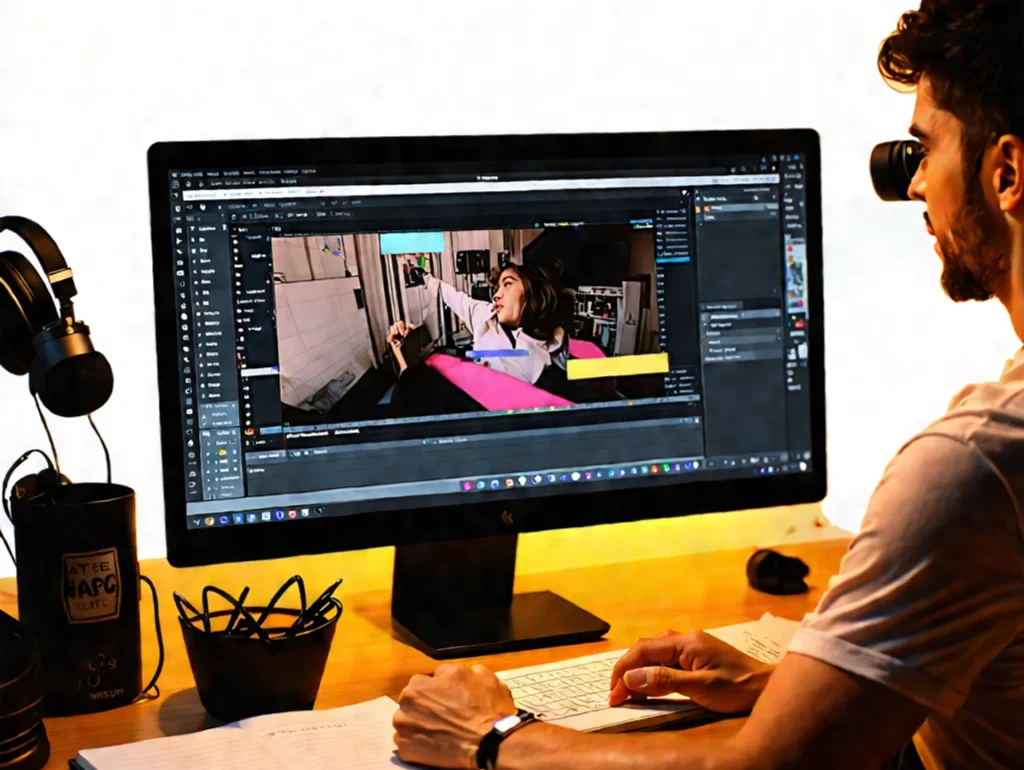
A Video editing can seem daunting at first, but with the right tips and tricks, you can transform your raw footage into a polished masterpiece. Whether you’re creating content for social media, a personal project, or a professional endeavor, understanding the basics of video editing is crucial. In this article, we’ll explore essential techniques, tools, and creative strategies to help you elevate your video editing skills. Understanding the Basics of Video Editing beginner video editing techniques, Before diving into the nitty-gritty of video editing, it’s important to grasp the fundamental concepts. Video editing involves manipulating and rearranging video footage to create a new work. This process can include cutting scenes, adding effects, and incorporating audio. Key Terminology Understanding these terms will help you navigate your editing software more effectively. Choosing the Right Software Selecting the right video editing software is crucial for your editing journey. There are various options available, ranging from beginner-friendly to professional-grade tools. Popular Video Editing Software Video editing software recommendations for beginners Tip: Start with free or trial versions of software to find what suits your style before committing to a purchase. Essential Video Editing Techniques Once you have your software set up, it’s time to dive into some essential editing techniques that can enhance your videos. 1. Cutting and Trimming Cutting and trimming are fundamental skills every editor should master. Here’s how to do it effectively: 2. Adding Transitions Transitions can help your video flow better. Here are some common types: 3. Incorporating Text and Titles Adding text can provide context and enhance your video. Consider these tips: Enhancing Your Video with Audio Audio is just as important as visuals in video editing. Here’s how to make your audio stand out: 1. Background Music 2. Sound Effects 3. Voiceovers Color Correction and Grading Color correction and grading can dramatically change the look of your video. Here’s how to approach it: 1. Basic Color Correction 2. Creative Color Grading Exporting Your Final Video After editing, it’s time to export your video. Here are some tips for a successful export: Conclusion Video editing is a skill that takes time and practice to master, but with these tips and tricks, you’re well on your way to creating stunning videos. Remember to experiment with different techniques, and don’t be afraid to make mistakes—they’re part of the learning process. Takeaway: Start small, keep learning, and most importantly, have fun with your editing journey! If you found this article helpful, consider sharing it with fellow aspiring video editors or leave a comment below with your favorite editing tips! Happy editing!
Top 10 AI Apps Revolutionizing the Digital World in 2025